
Thank you for checking out an Amazon Fire Tablet. We hope you enjoy the reading services provided!
Important Information
To ensure your viewing of these services is not interrupted, please:
- Do not remove any apps or content.
- Do not enter or leave personal credit card information logged into any apps or accounts.
What’s Included
- Amazon Fire Tablet
- Amazon Fire Cover
- AC Adapter
- Carrying Case
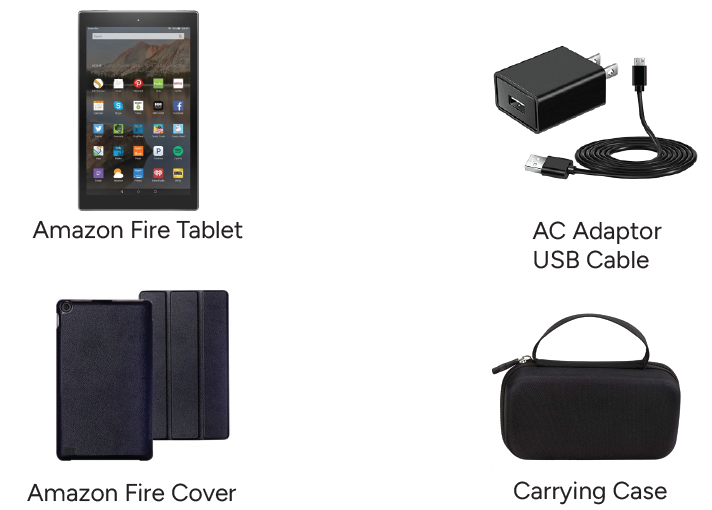
Setup
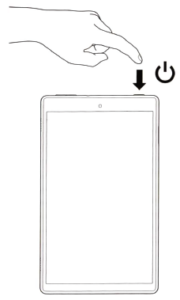
Step 1: Power on Fire Tablet
Press the button on the top-right corner to power on the device.
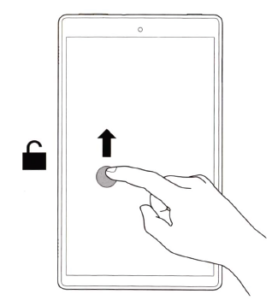
Step 2: Unlock the Screen
Unlock the screen by swiping up.
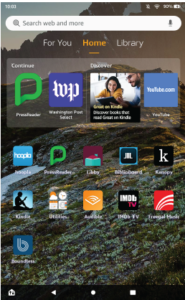
Step 3: Choose Your Content
Open your favorite reading app or the built-in library of books.
Step 4: Charging
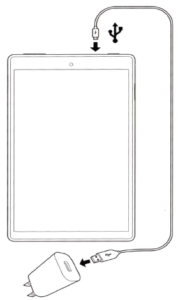
To charge, please connect the charging cable to the top of the Fire Tablet.
Available Apps
Accessing the Built-In Library
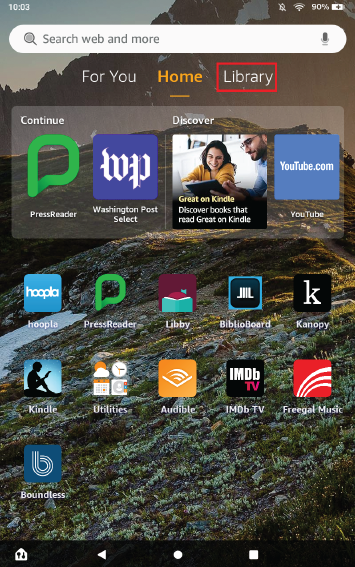
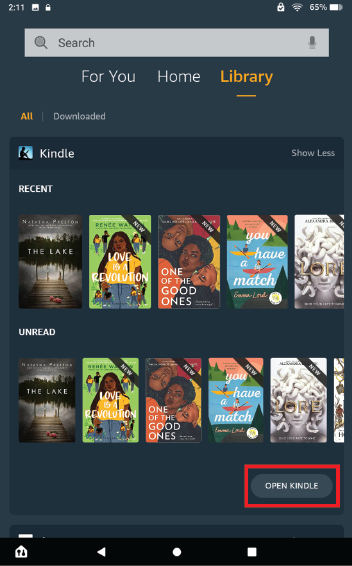
Fire tablets come preloaded with a collection of eBooks. To access them, select “Library” from the top toolbar on the home screen. To see all available eBooks, select “Show More” and then “Open Kindle.” From here, you will see the entire library and be able to sort or filter books based on your preferences.
Accessibility Functions
To access the Fire Tablet’s accessibility menu, triple-tap the power button. Some accessibility features include:
- VoiceView Screen Reader (to open or confirm a selection, double-tap the selection)
- Screen Magnification
- Font size Adjustment
- High-Contrast Text
- Color Inversion
- Color Correction
- Closed Captioning for Videos