
Thank you for checking out a Roku Ultra + mobile hotspot. We hope you enjoy the streaming services provided!
Important Information
To ensure your viewing of these services is not interrupted, please:
- Do not connect the Roku to your personal Wi-Fi.
- Do not log out of Crunchyroll*, Disney+, HBO Max, Hulu or Netflix.
- Do not remove any set channels or content.
- Do not enter or leave personal credit card information logged into any channels or accounts.
*Crunchyroll is only available on Outreach Roku devices.
What’s Included
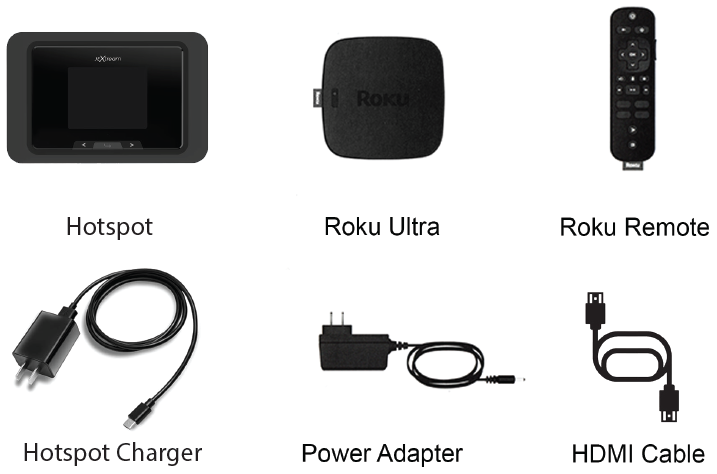
- Mobile Hotspot
- Hotspot Charger
- Roku Ultra
- Roku Remote
- Roku Power Adapter
- HDMI Cable
Setup
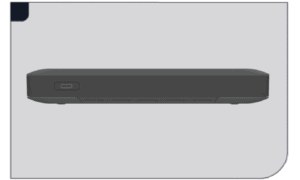
Step 1: Power on Hotspot
Press and hold the button near the top, right corner until the “Welcome” message appears.
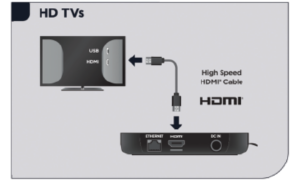
Step 2: Connect to TV
Connect the Roku Ultra to an HDMI port on your TV using the HDMI cable provided.

Step 3: Connect to Power
Use the included power adapter to connect your Roku Ultra to a power outlet.
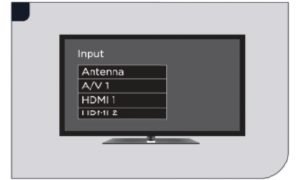
Step 4: Power on TV and Select Input
Use your TV remote to power on the TV and select the HDMI input you used to connect the Roku Ultra.
The Roku will automatically connect to the hotspot once both are powered on.
Available Apps
- Crunchyroll (only available on Outreach Roku devices)
- Disney+
- Fandango (formerly VUDU) (select “Movies” to find a collection of ad-free movies)
- HBO Max
- Hoopla (library card number and PIN are needed to sign in)
- Hulu
- Kanopy (library card number and PIN are needed to sign in)
- Netflix
- Roku Channel
- Kids & Family on the Roku Channel (only available on Outreach Roku devices)
- YouTube
Linking Your Hoopla & Kanopy Accounts
Hoopla
You will need an active hoopla account and access to a web browser to link to the hoopla app. If you have an account, press Next; otherwise, visit hoopladigital.com to create an account first.
Log into your hoopla account from a web browser. Once logged in, visit hoopladigital.com/link and enter the unique code displayed on your screen. This can also be done through the settings menu on the hoopla app.
You have 10 checkouts per month available to use on your hoopla account. Be sure to log out of your account before returning the Roku. If you forget, we will log out of any linked accounts once the Roku is returned.
Kanopy
You will need an active Kanopy account and access to a web browser to link to the Kanopy app. If you have an account, proceed to the next step; otherwise, visit kanopy.com to create an account first.
From the home screen, select Settings from the sidebar menu. Next, select Login at the top. Log into your Kanopy account from a web browser. Once logged in, visit kanopy.com/link and enter the unique code displayed on your screen. This can also be done through the settings menu on the Kanopy app.
You have 30 tickets per month available to use on your Kanopy account. Be sure to log out of your account before returning the Roku. If you forget, we will log out of any linked accounts once the Roku is returned.
Additional Support
For additional information on setting up and using the Roku device, please visit support.roku.com.