
A Digital Library for All Ages
You’re probably familiar with our Digital Collection, but did you know our most popular apps can be curated for your kids and teens? The whole family can enjoy movies, books and more anywhere you go, as long as you have your Fountaindale Library card and an internet-connected device.
Kanopy Kids
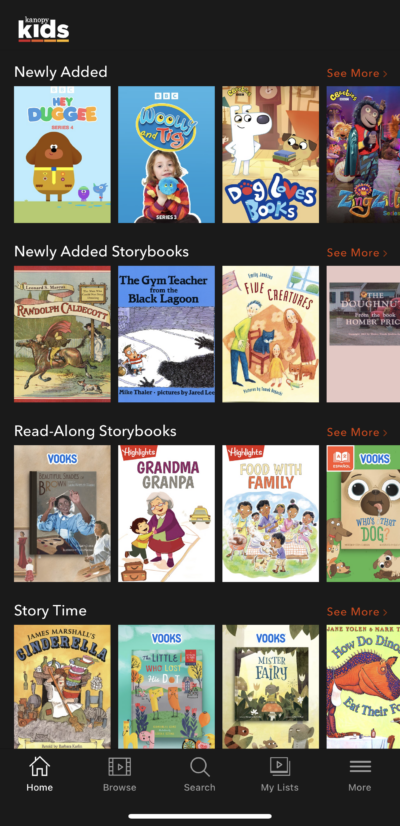
Kanopy is a premium streaming service with thousands of children’s movies and TV shows, including titles from PBS Kids, Media Education Foundation and more.

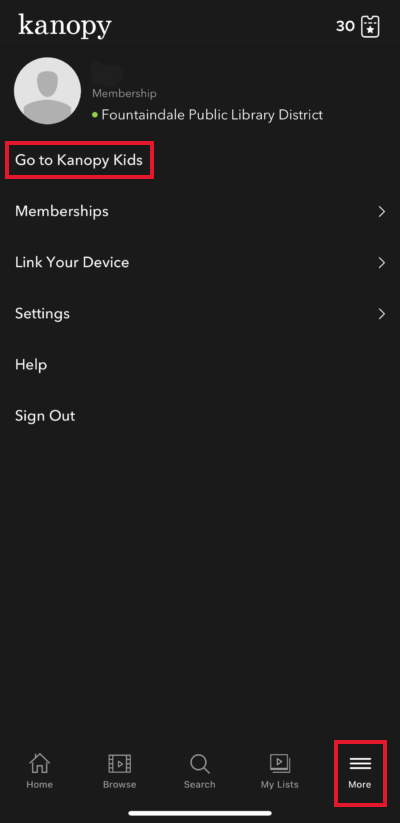
- Activate Kanopy Kids while you’re browsing on the app or the website.
- While in Kanopy Kids, you can only see content recommended for kids ages 12 and younger.
- You can create a passcode that will be required to leave Kanopy Kids.
- Plus, none of the videos in Kanopy Kids count towards your tickets!
Hoopla Kids Mode
With hoopla, your kids can access thousands of movies, TV shows, music, eBooks, eAudiobooks and graphic novels whenever and wherever they want.

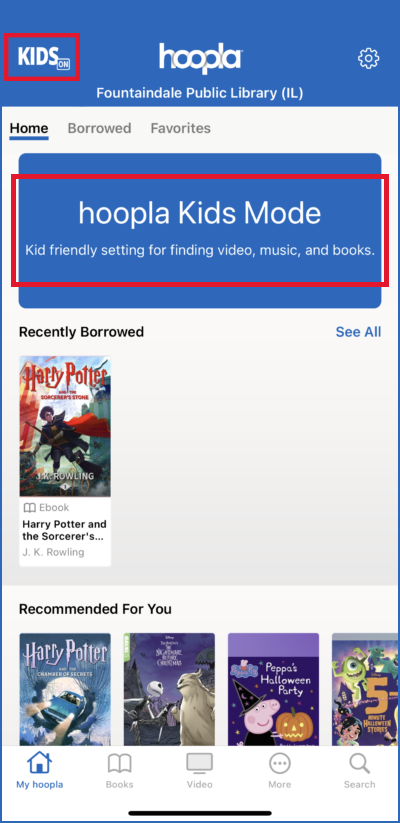
- Activate Kids Mode while you are browsing in the app or the website.
- In Kids Mode, you will only see content recommended for kids 12 and younger.
- When activated, the “Hoopla Kids Mode” banner is shown.
- You can activate or deactivate Kids Mode in the settings.
- You can create a passcode that will be required to leave Kids Mode.
Boundless
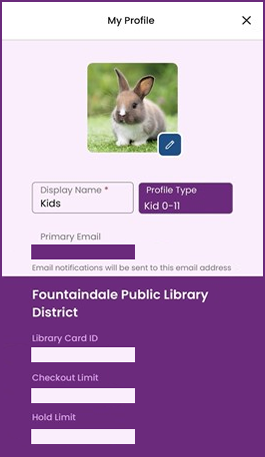
Formerly Axis360, Boundless connects your kids to an extensive collection of eBooks, eAudiobooks and digital media. You can set reading goals for them and track their progress, and they can earn fun badges just for reading.

Here are two helpful features that are new to the Boundless app:
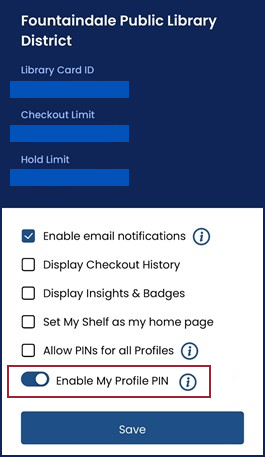
- You can set up a separate profile for your kids and teens.
- These profiles will only show content recommended to kids and teens.
- You can create a passcode for your profile that will be required to access adult content.
Libby
Our most popular digital media app has a robust collection of eBooks, eAudiobooks, magazines and movies—including best-selling authors, new release titles, classics and crowd-pleasers.
- On Libby’s website, change content preferences in the settings tab to view the content for various age groups: juvenile, young adult, general adult and mature adult.
- Once selected, you will only see content recommended for those age groups.
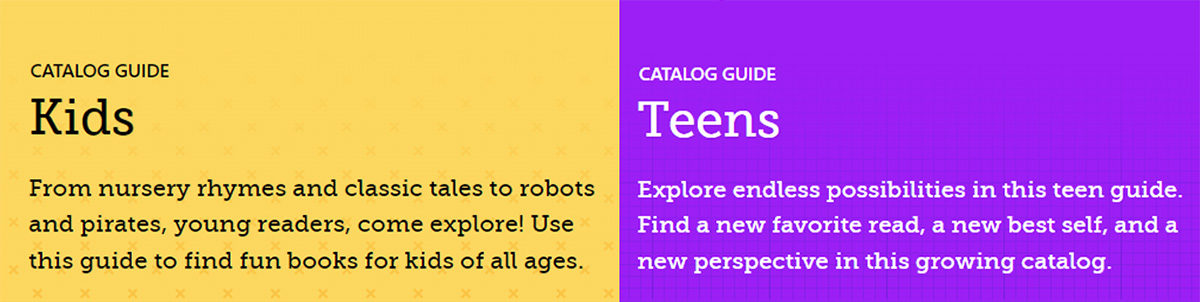
- On the Libby app, filter your searches by audience and select “juvenile” to only see content for kids.
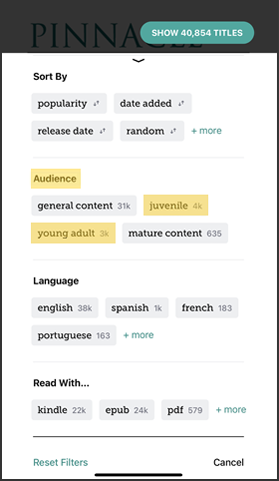
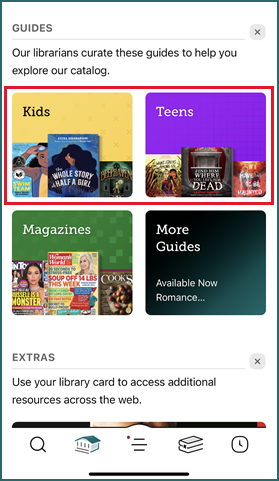
- Guides for kids and teens are available to browse on the Libby App. You can access these by scrolling down on your home screen.
I hope these tips and tricks help you and your family explore our wonderful Digital Collection. Get started by visiting our Digital Collection page to download these apps so you can have your library with you no matter where you go!